
Phase 7: Organizer Dashboard
Organizer enters PIN to access the dashboard, selects the winning slot, and closes the poll.
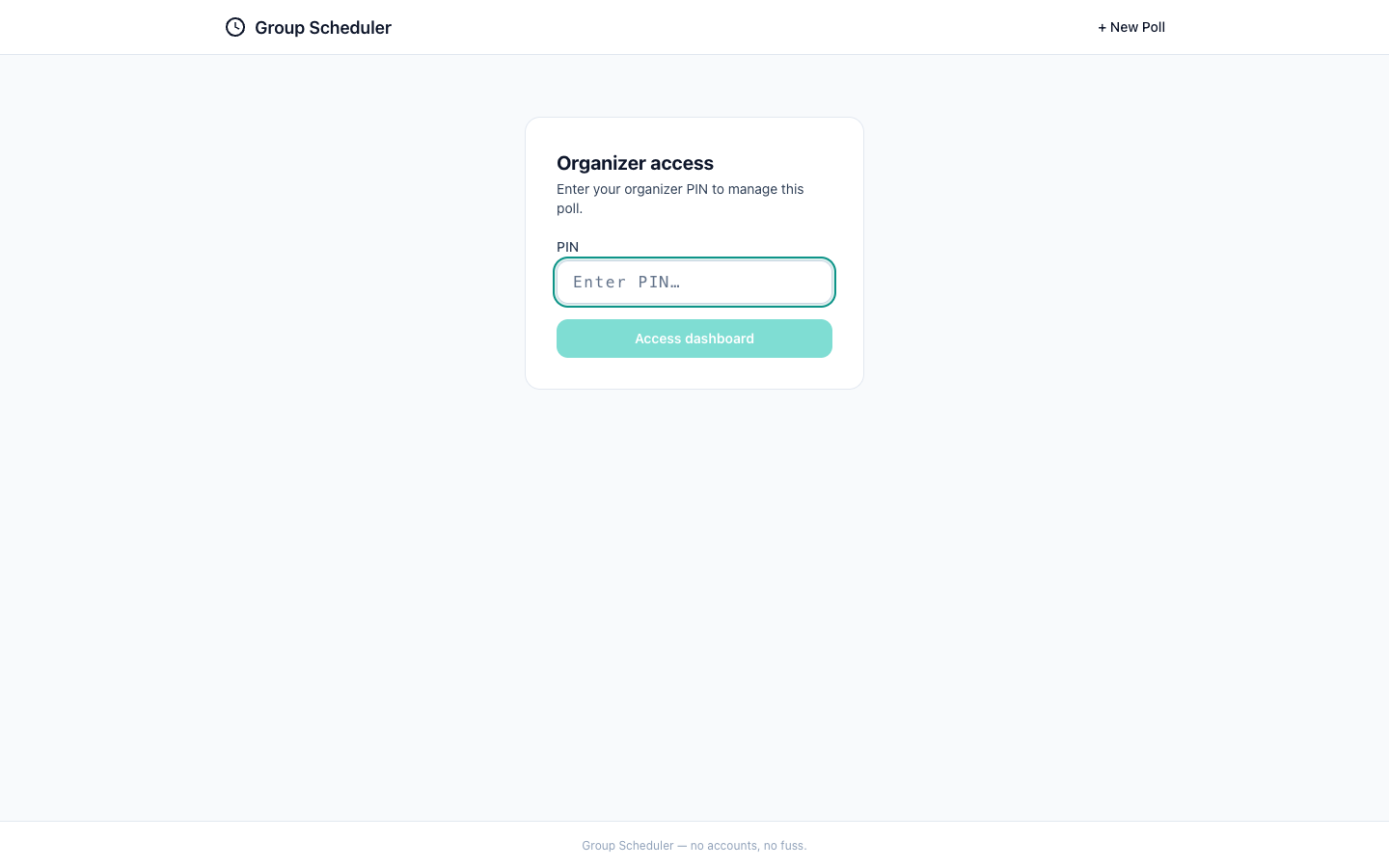
The screenshot shows a clean and simple PIN entry form for accessing the organizer dashboard. The design is minimalistic, with good use of white space and a clear call to action. The form is well-placed in the center of the screen, making it easy to find and interact with. The visual quality is high, with a modern and professional look. The accessibility could be slightly improved by enhancing the visibility of the placeholder text. The UX flow is intuitive, guiding the user to enter their PIN to proceed. The mobile readiness appears to be good, with large enough touch targets and a responsive design.
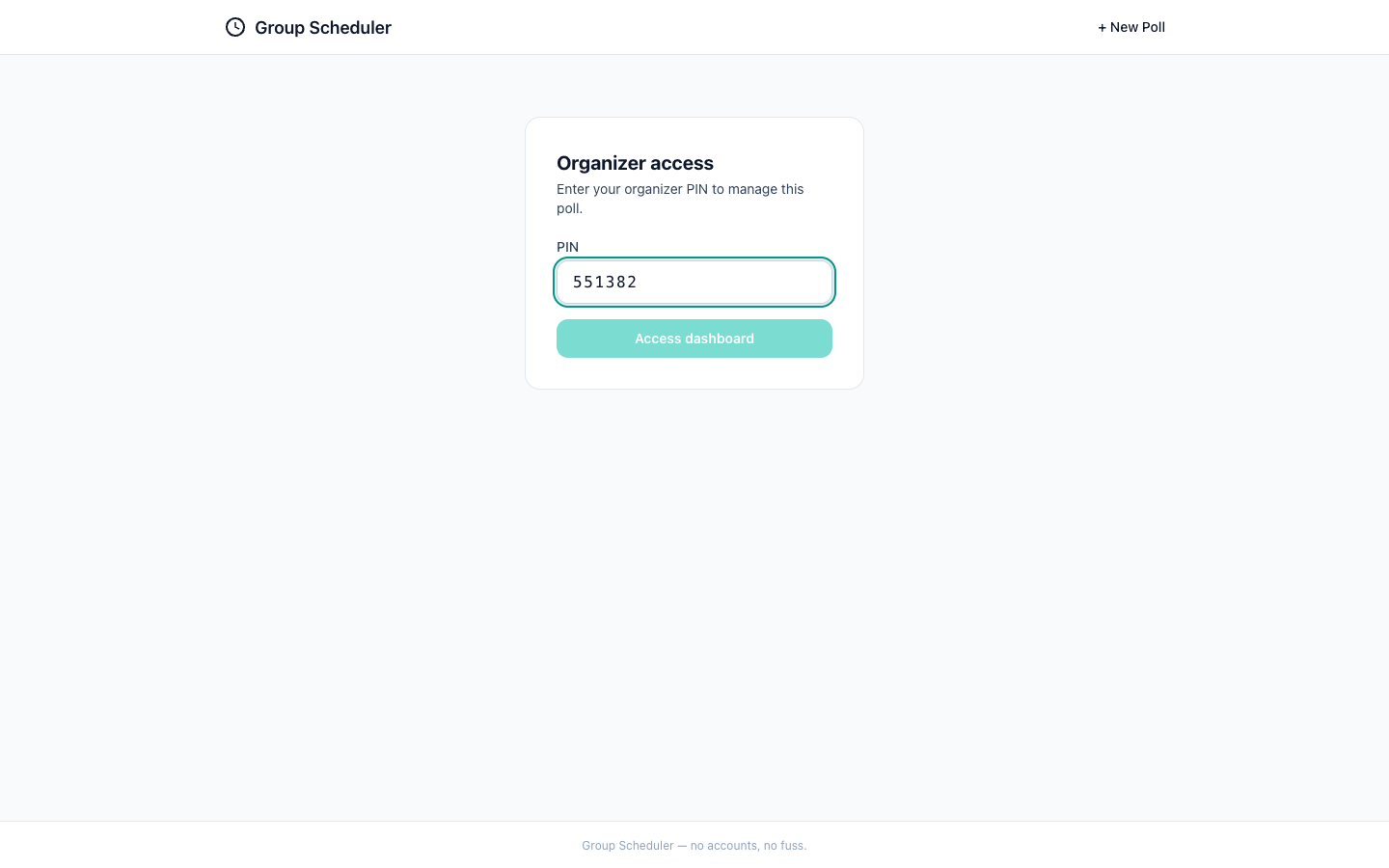
The screenshot shows a clean and well-organized interface for entering an organizer PIN. The visual quality is high with good use of spacing and typography. The PIN input field is clearly marked and the 'Access dashboard' button is prominently placed. The accessibility could be improved with better labeling for screen readers. The UX flow seems intuitive, guiding the user towards accessing the dashboard after entering the PIN. The mobile readiness appears to be good with large touch targets and no visible horizontal overflow. Overall, the step is well-designed and should work well for users.
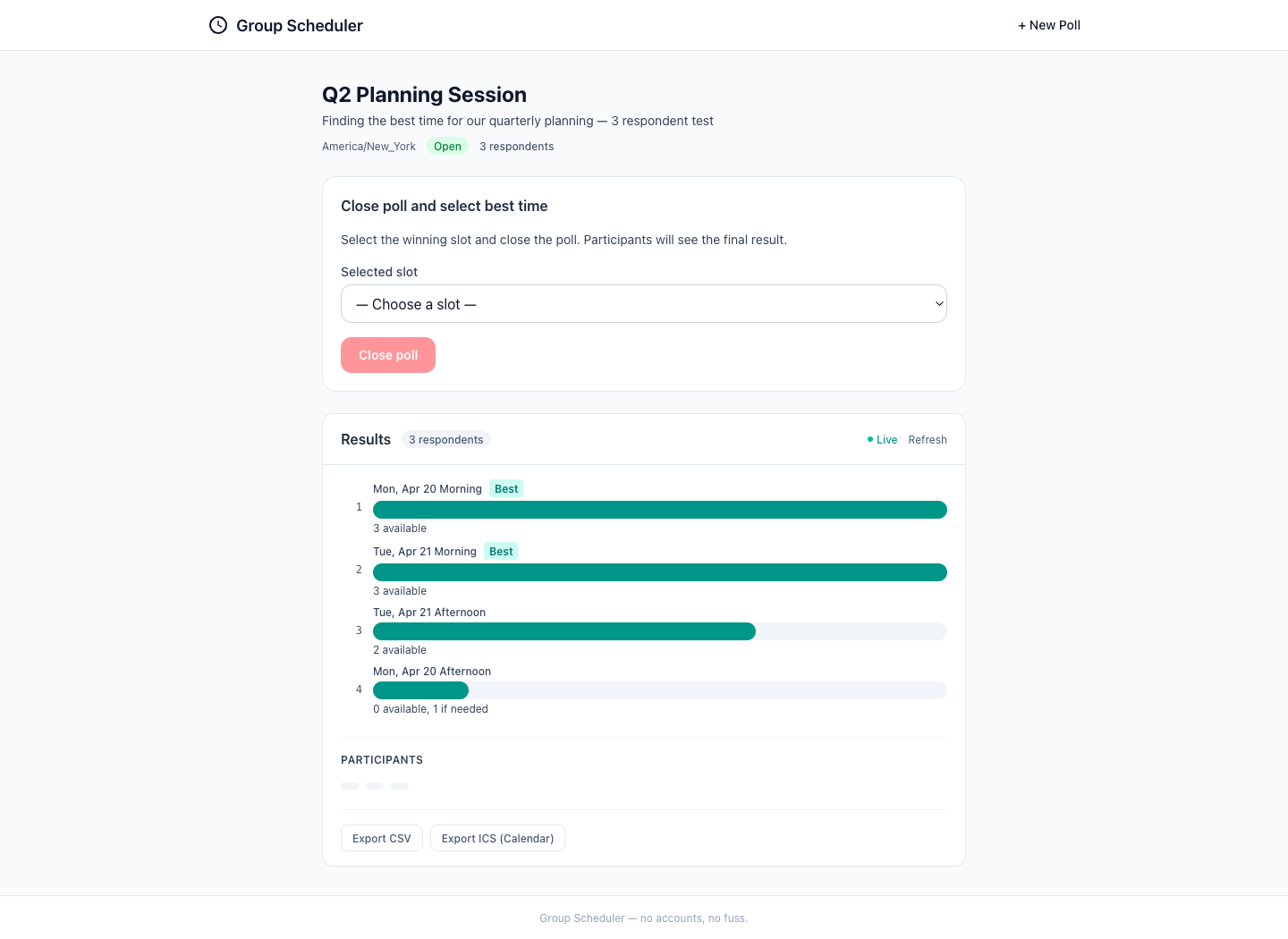
The screenshot displays a clean and well-organized dashboard with a clear hierarchy of information. The results are visually represented with progress bars, which effectively communicate the data at a glance. The 'Close poll' button is prominently placed, but could benefit from higher contrast for accessibility. The dashboard is intuitive and seems to advance the user toward their goal of managing a poll. It appears to be mobile-ready, with touch targets that are appropriately sized and readable. Overall, the design is polished and user-friendly, with minor room for improvement in accessibility and confirmation steps.
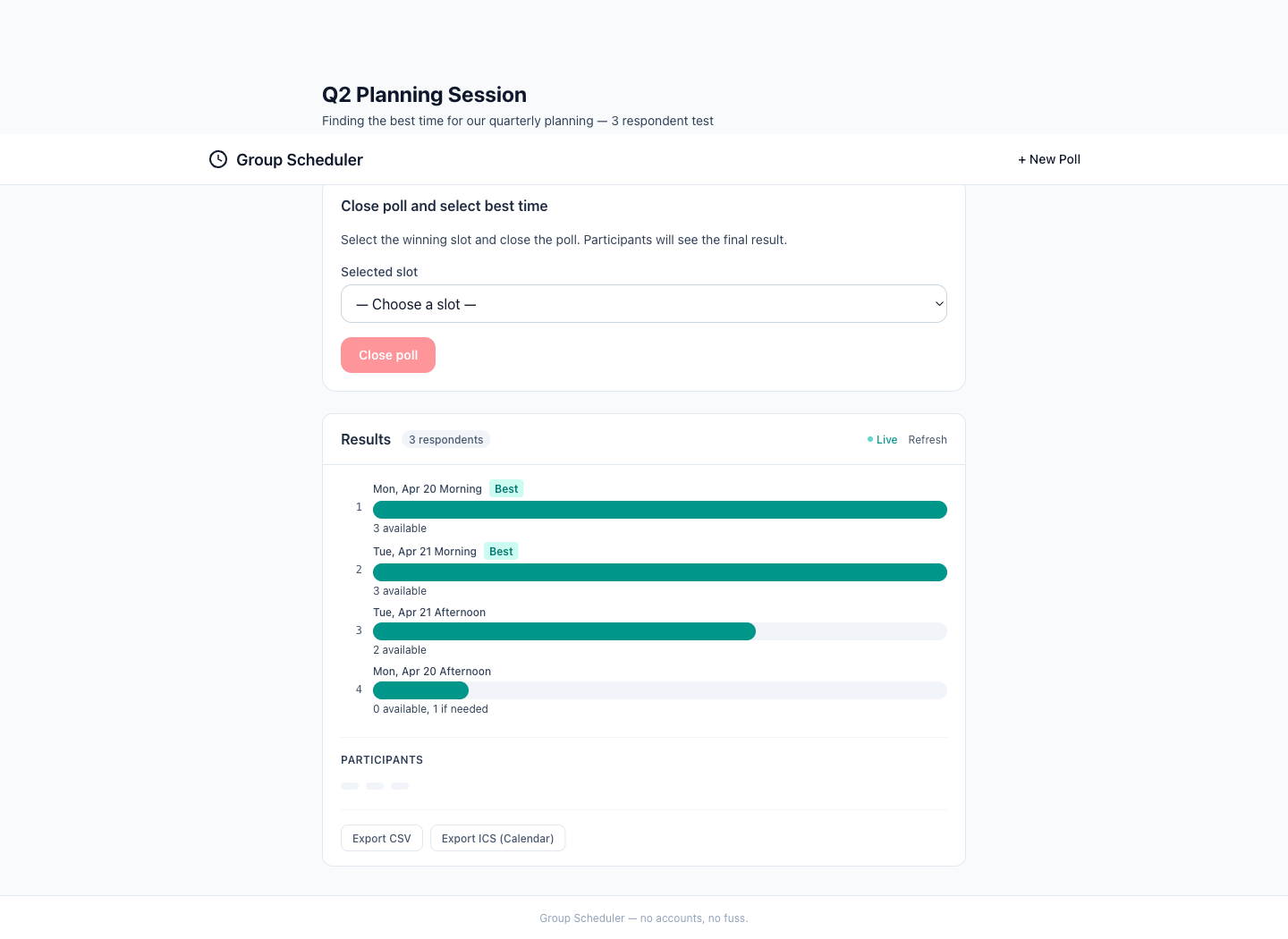
The dashboard is clean and well-organized, with a clear visual hierarchy that makes it easy to understand the different sections and their purposes. The use of color to denote the 'Best' time slots is effective, but additional context might be needed for clarity. The interface appears to be accessible, with sufficient contrast and legible typography. The flow seems intuitive, guiding the user to select the best time slot and close the poll. However, it's important to ensure that users are aware of the consequences of closing the poll. The design is also mobile-ready, with touch targets that appear to be appropriately sized and no visible horizontal overflow.
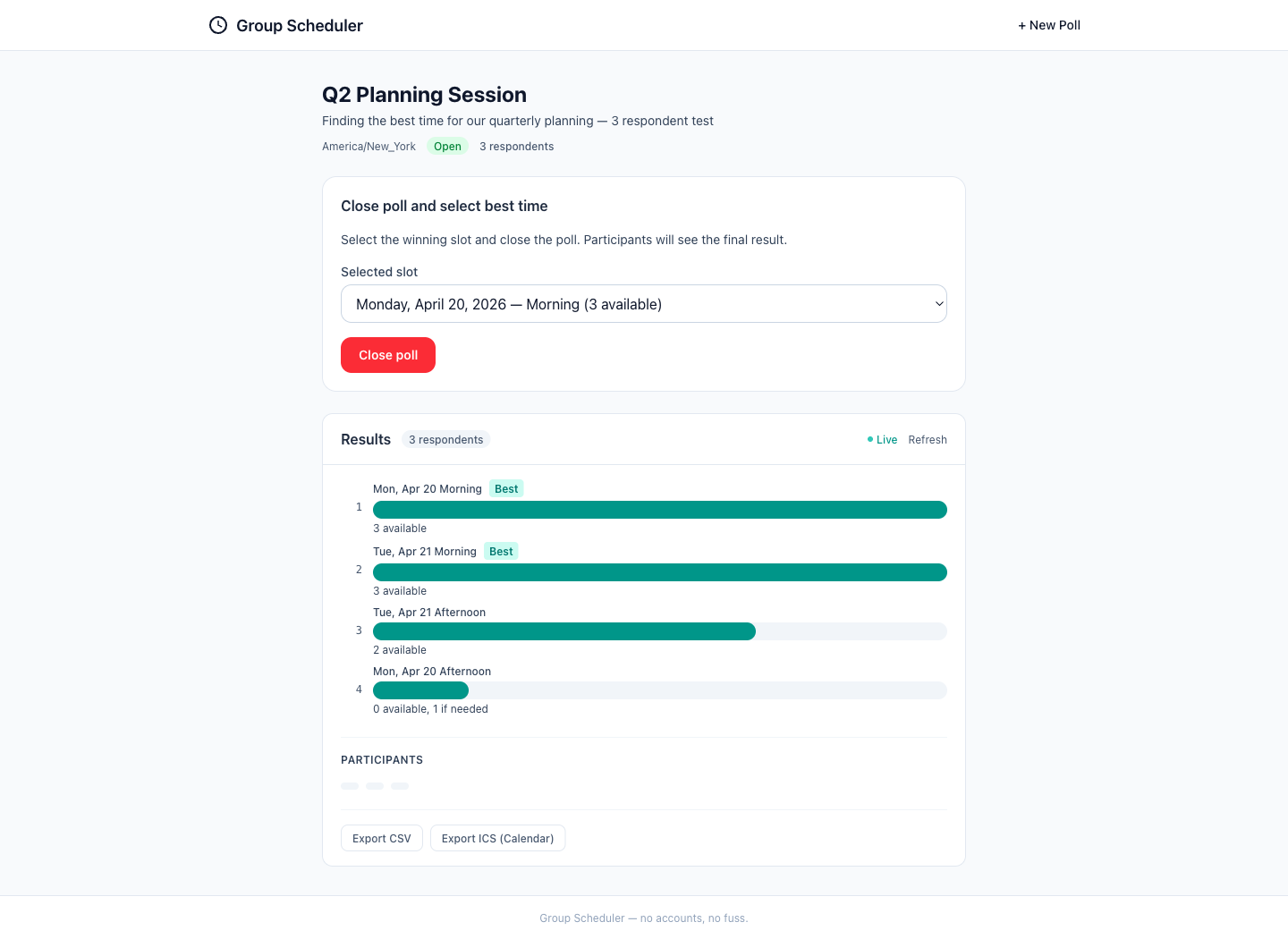
The screenshot shows a clean and intuitive interface for selecting a time slot for a planning session. The visual hierarchy is clear, with the selected slot prominently displayed. Accessibility is generally good, but there is room for improvement in color contrast for better visibility. The UX flow is logical, allowing the organizer to easily select and close the poll. The interface appears to be mobile-ready, with touch-friendly elements and readable text sizes. Overall, the step is well-designed and matches the intended user flow.
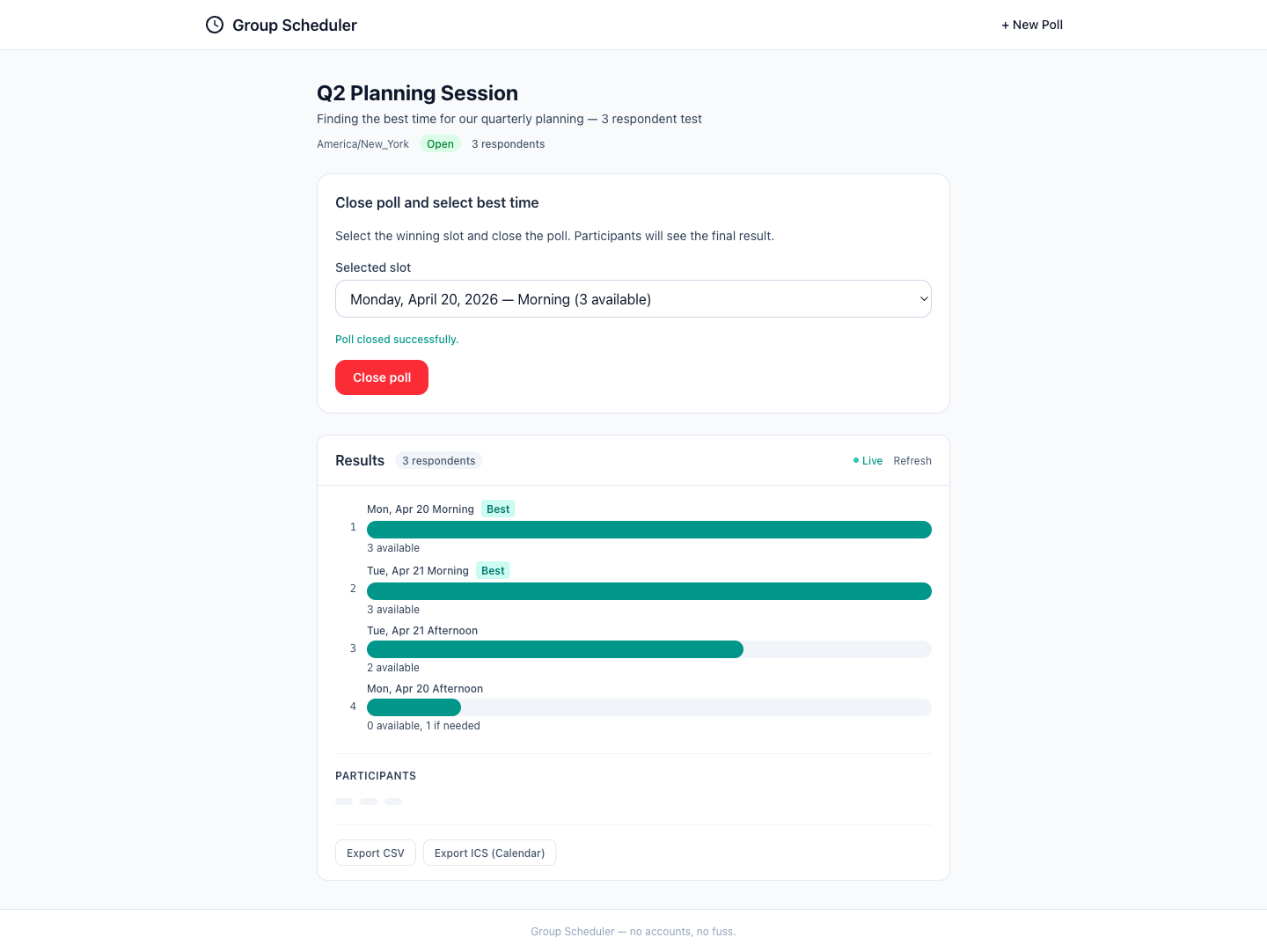
The screenshot shows a clean and well-organized dashboard for closing a poll. The visual quality is high with clear typography and a logical layout. The success message is prominently displayed, indicating that the poll has been closed successfully. The results are presented in a straightforward manner, showing the winning slot clearly. The UX flow appears intuitive, guiding the user through the process of closing the poll and confirming the winning slot. The interface seems ready for mobile use, but further testing would be beneficial to ensure all elements are easily interactable on smaller screens. Overall, the design is effective and user-friendly, with minor suggestions for enhancing accessibility and mobile readiness.